
Description
Auto Form Builder (AFB) is the free WordPress form builder that gives you what other plugins charge for. Build contact forms, multi-step forms, surveys, file-upload forms, product order forms and payment forms with drag and drop, no code and no monthly fees. Build a form by hand or let AI build it for you, and embed your forms, or their AI chat version, on any website, WordPress or not.
Free forever, with no paid add-ons. The “Add-Ons” screen is simply optional free modules you switch on in one click. Stripe Payments adds no fee of its own: you pay only Stripe’s standard processing fees. The AI features are optional, and the only thing you can ever pay for is AIDA credits for them, once the free trial credits are used up.
Privacy-first by design: your submissions stay on your own site, and the plugin contacts no external service unless you enable a feature that needs one.
Watch the full overview video · See all features · Support
Drag & Drop Builder
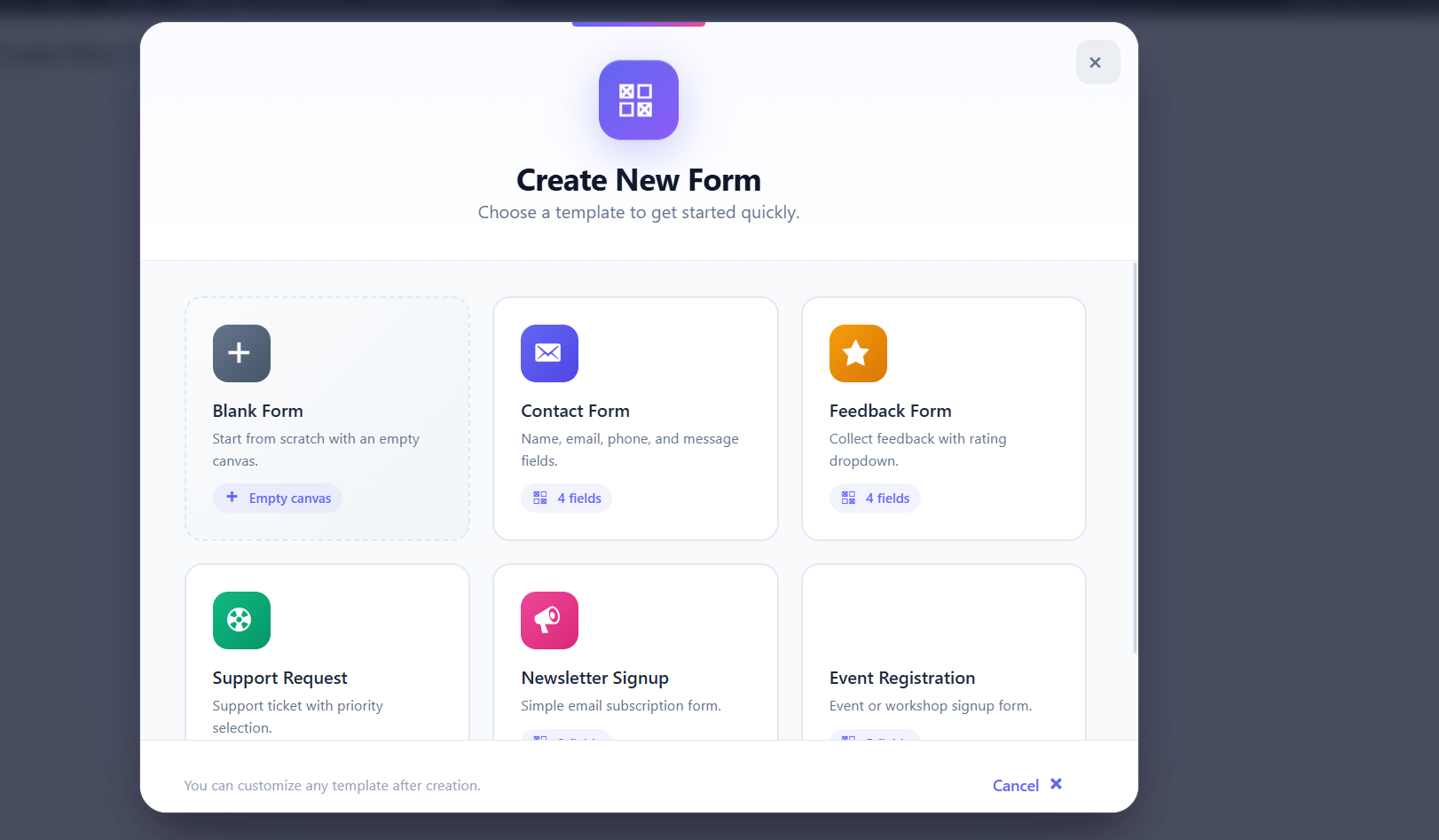
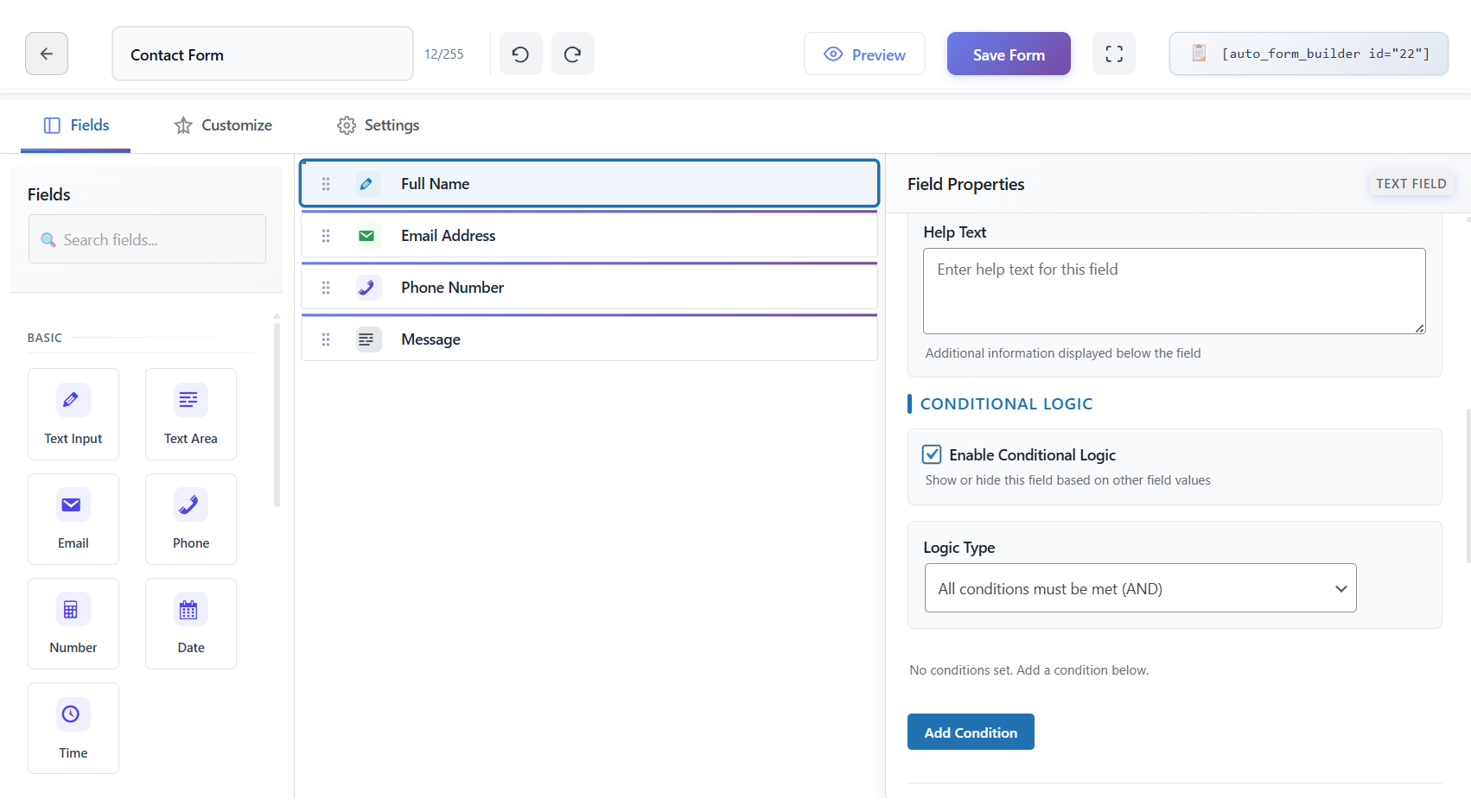
The visual drag-and-drop builder lets you add and reorder fields, undo and redo, and preview on desktop, tablet and mobile. Start from a template, a blank canvas, or a description for AI. Style your forms with theme presets, saved themes, a header image, colors, fonts and layout, with a live preview.
20+ Field Types
Text, Textarea, Email, Phone, Number, Date, Time, Month & Year, Checkbox, Radio, Dropdown, Name, Address, File Upload, Signature, Color Picker, Calculation, Products, an HTML content block and Page Break, plus four survey fields: Tabular Survey (Likert grid), Star Rating, NPS and Opinion Scale. Fields support validation, help text, icons, URL prefill and conditional logic. See the full field reference.
Products Field (free)
List what you sell with a price, optional description and image, shown as checkboxes, a single choice, quantity steppers or cards. Visitors pick quantities within your limits and see a live order total. Products work with conditional logic and calculations, a link can preselect products and quantities, and with Stripe Payments visitors pay through an itemized Stripe Checkout. Prices are one-time; recurring billing is not available yet.
Logic, Calculations & More
- Conditional logic — show or hide fields with AND/OR conditions, and change the success message, redirect or notification emails.
- Calculations — live totals, quotes and scores, recalculated on your server so visitors cannot change them.
- Multi-step forms — steps, a progress bar and branching that skips steps that don’t apply.
- Surveys — Likert grids, star ratings, NPS and opinion scales, with charts and an NPS trend.
- Signature — visitors sign with a mouse, finger or stylus.
- Partial entries — unfinished answers are saved and removed after the retention period you choose.
Submissions & Notifications
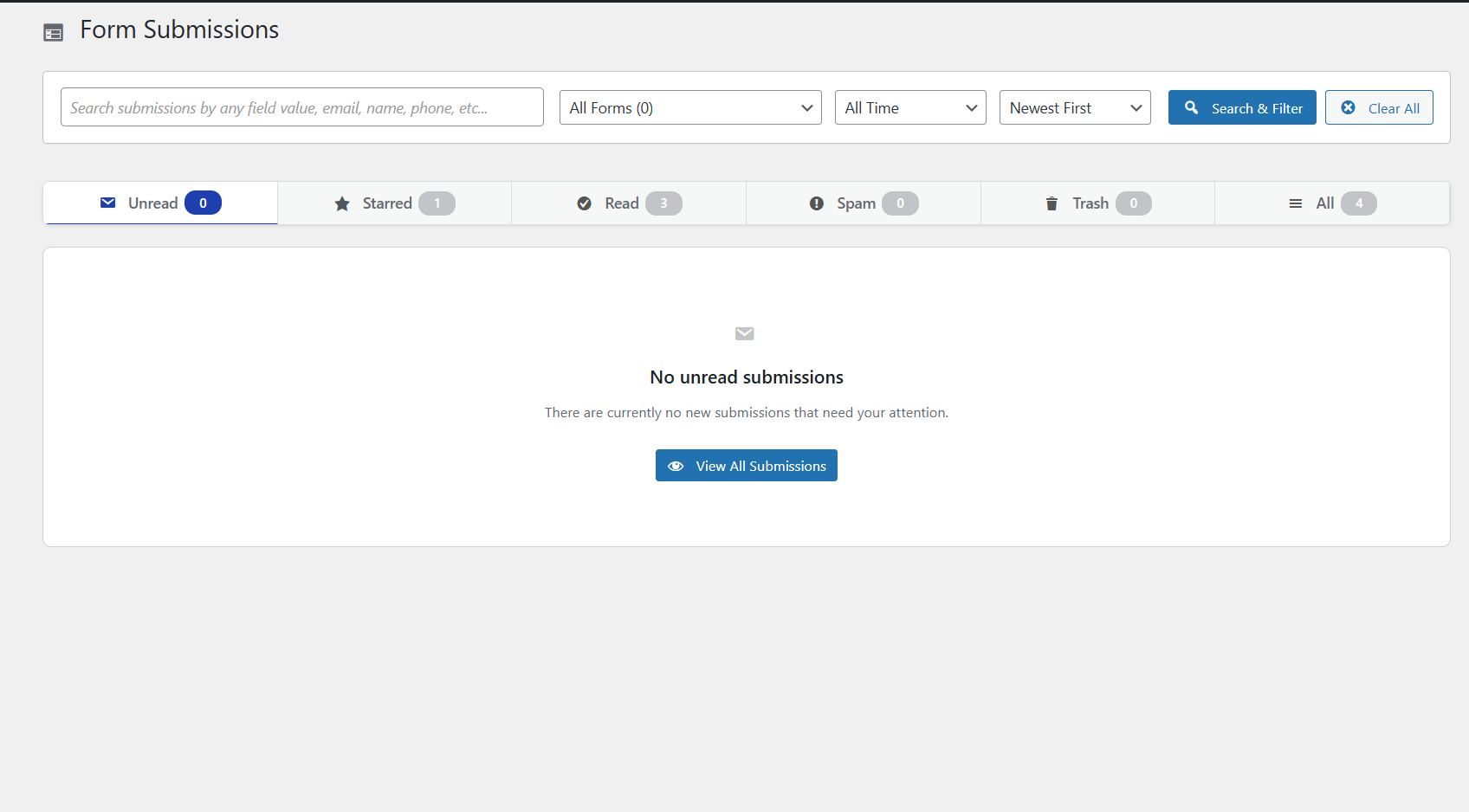
An inbox with Unread, Starred, Spam and Trash tabs, search, filters, bulk actions and CSV or JSON export. Quick view opens any entry over the list, and each entry page shows the answers first, with the details, tags and payment beside them. On a submission page, Previous, Next and “Next unread” move through your list, keyboard shortcuts save clicks, and “Reply by email” opens your email app. Admin and confirmation emails use your own recipients, subject and placeholders, in HTML or plain text. See submission management.
Embed Anywhere & Pass Answers On
Every form has an embed code for any site, including non-WordPress sites and page builders, plus a Gutenberg block. Prefill fields from the URL, and pass answers on through {field} tags in a redirect URL, for example to a booking page or CRM.
Free Add-Ons
Switch these on under Forms Add-Ons:
- Stripe Payments — Stripe Checkout with your own Stripe account, for a fixed price, an amount the visitor enters, a Calculation result or a Products order. No added fee: you pay only Stripe’s standard processing fees.
- Popup Forms — modal, slide-in, sticky bar, full-screen, welcome mat or floating button.
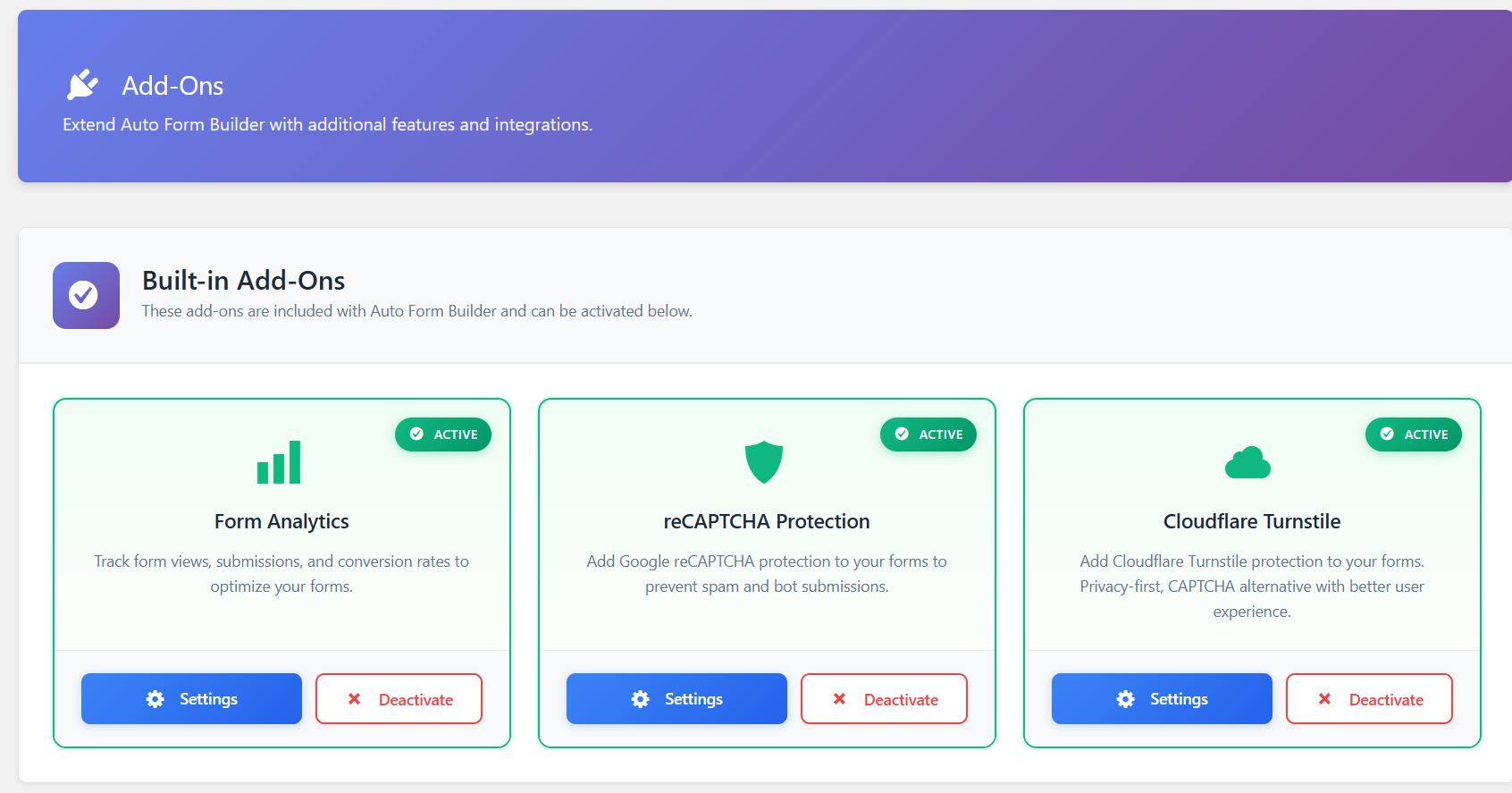
- Form Analytics — views, submissions and conversion rates per form.
- Spam Protection — Google reCAPTCHA and Cloudflare Turnstile.
- User Registration & Login — create accounts from any form and add a login form.
- Slack Notifications, Entry Tags and Google Sheets.
- Ad Tracking — remembers ad click IDs and UTM parameters in one first-party cookie, only for visitors who arrive from an ad or a tagged link, so webhooks can tell your ad platform or CRM which ad brought each lead.
Webhooks and import/export of forms and entries are built in. Send each submission to several webhooks (Zapier, Make, a CRM or any endpoint), as the standard data or as your own JSON template (for example for the Meta Conversions API), signed if you like, in the background with automatic retries. Templates use answer and submission tags with modifiers such as |e164 and |sha256, and any field can be set to “Never send to webhooks”.
AI Features (optional)
- AI Assistant — build a form from a description or document, generate logic, summarize submissions and draft replies.
- AI Conversation — turn any form into a friendly chat, with optional appointment booking, on your own pages or embedded on any website. Its Appearance tab styles each chat with presets (Light, Dark, Transparent or “Match my form”), your colors, Google fonts, a header and avatar, and an optional floating chat button.
They are switched on by default but send nothing until you connect an AIDA account, and you can switch them off under Forms Add-Ons. A free AIDA account at autoformcrm.com includes trial credits; after that, AI usage needs one-time credit packs. See “External Services” for exactly what is sent.
External Services
By default the plugin contacts no external service. Each service below is used only after you set up the feature that needs it.
AIDA — AI Assistant & AI Conversation (optional)
- Provider: AIDA by Auto Form CRM (https://autoformcrm.com/); requests are processed by Anthropic.
- When: only after an administrator connects an AIDA account, and then each time an AI feature is used. The AI modules are on by default, but nothing is sent until an account is connected. The core builder never contacts AIDA.
- Account & cost: a free AIDA account with trial credits; after that, one-time credit packs bought on autoformcrm.com in a new tab (no payment inside the plugin). All non-AI features stay free.
- Data sent (only for the action you trigger): on connect, your site address and a one-time code; the form description or document when building a form; submission content when you ask for a summary, reply or answer about submissions; messages typed into the admin assistant; and, if AI Conversation is on for a public form, the visitor’s chat messages. The AIDA token is sent server-side only and stored encrypted.
- Not sent: anything for AI features you do not use, and never WordPress passwords.
- Terms / privacy: https://autoformcrm.com/terms, https://autoformcrm.com/privacy, https://www.anthropic.com/legal/commercial-terms, https://www.anthropic.com/legal/privacy
Deactivation feedback (opt-in, one-time)
- Provider: Auto Form CRM, https://autoformcrm.com/api/v1/plugin-feedback
- When: only when an administrator clicks “Submit & Deactivate” in the deactivation dialog. Skipping or closing it sends nothing.
- Data sent: the chosen reason, an optional comment (up to 1000 characters), WordPress, PHP and plugin versions, and site locale. The exact payload is shown before sending.
- Not sent: site URL, admin name or email, user ID, IP address or form data.
- Terms / privacy: https://autoformcrm.com/terms and https://autoformcrm.com/privacy
Anonymous usage data (opt-in, off by default)
- Provider: Auto Form CRM, https://autoformcrm.com/api/v1/plugin-telemetry
- When: only if you turn on “Help improve Auto Form Builder by sending anonymous usage data” (onboarding or Settings General): one “install” event on opt-in and one “uninstall” event on deletion.
- Data sent: a random site ID, plugin, WordPress, PHP and MySQL versions, install version, locale, multisite flag, days since install, form and submission counts as ranges, active modules and onboarding status. The full list is shown next to the checkbox.
- Not sent: site URL, admin name or email, user ID, IP address or form content.
- Terms / privacy: https://autoformcrm.com/terms and https://autoformcrm.com/privacy
Slack Notifications (off by default)
- Provider: Slack Technologies, LLC (https://slack.com/). Only hooks.slack.com webhook URLs are accepted.
- When: only after you add your own Slack webhook URL and enable it for a form: on each submission of that form and on “Send Test”.
- Data sent: the form title and site name, plus the submitted answers only if “Include answers” is on. Passwords, CAPTCHA values and file contents are never sent; files appear by name only.
- Terms / privacy: https://slack.com/terms-of-service and https://slack.com/trust/privacy/privacy-policy
Stripe Payments (add-on, off by default)
- Provider: Stripe, Inc. (https://stripe.com/). Only https://api.stripe.com is contacted, from your server, with your own Stripe API key.
- When: only after you enable the add-on and connect a key: to verify the key; to create or delete a webhook endpoint in your Stripe account; about every six hours while the settings page is open, to re-check the key; when a visitor submits a payment form (to create a Checkout session) and returns from it; when Stripe notifies your site of a payment event (signature-verified); and every ten minutes through WP-Cron while payments are still pending.
- Data sent: your API key (server-side only, stored encrypted); your webhook URL and site name; for payments, the amount, currency, product name (for a Products field, each product’s name, quantity and price), return page addresses, submission and form IDs, and the payer’s email only if you map an email field. Card details are entered on Stripe’s page and never touch your site.
- Fees: the plugin adds no fee. Payments go straight to your Stripe account; you pay only Stripe’s fees.
- Terms / privacy: https://stripe.com/legal/ssa and https://stripe.com/privacy
Google Sheets (add-on, off by default)
- Provider: Google LLC. Your server contacts oauth2.googleapis.com, sheets.googleapis.com and www.googleapis.com using a service account you create.
- When: only after you enable the add-on and save the service-account credentials: when you test the connection or pick a spreadsheet or worksheet, and after each submission of a connected form (sent in the background through WP-Cron, with retries).
- Data sent: a sign-in request signed with your service-account key (the key stays on your site, encrypted); the chosen spreadsheet and worksheet; and the mapped field values with their column names. Picking a spreadsheet lists those shared with the service account.
- Not sent: fields you have not mapped.
- Terms / privacy: https://developers.google.com/terms and https://policies.google.com/privacy
Google reCAPTCHA (add-on, off by default)
- Provider: Google LLC (https://www.google.com/recaptcha/).
- When: only after you enable the add-on, enter your keys and turn it on for a form. Pages with that form load https://www.google.com/recaptcha/api.js, and your server checks each submission with https://www.google.com/recaptcha/api/siteverify.
- Data sent: Google’s script collects what it needs to detect bots (such as IP address, browser details and page interaction). Your server sends your secret key and the response token. No form answers are sent.
- Terms / privacy: https://policies.google.com/terms and https://policies.google.com/privacy
Cloudflare Turnstile (add-on, off by default)
- Provider: Cloudflare, Inc. (https://www.cloudflare.com/).
- When: only after you enable the add-on, enter your keys and turn it on for a form. Pages with that form load https://challenges.cloudflare.com/turnstile/v0/api.js, and your server checks each submission with https://challenges.cloudflare.com/turnstile/v0/siteverify.
- Data sent: the Turnstile script collects what it needs to detect bots (such as IP address and browser details). Your server sends your secret key and the response token. No form answers are sent.
- Terms / privacy: https://www.cloudflare.com/website-terms/ and https://www.cloudflare.com/turnstile-privacy-policy/
Webhooks (off by default)
- Provider: the endpoints you enter, one per webhook (for example Zapier, Make, a CRM, Meta through your own server, or any URL). Private and local network addresses are refused, also after redirects.
- When: only after you add a webhook and turn it on: after each submission of a form the webhook covers (sent in the background after the page has loaded, or through WP-Cron, with up to 5 retries over about 8 hours), and when you send a test.
- Data sent: with the standard data, your site address, submission time, form and submission IDs, the answers (signatures as embedded images) and the form’s field settings. With a custom JSON template, only what the template contains, which can include the visitor’s IP address, browser, page address and referrer, and (with the Ad Tracking add-on) ad click IDs, UTM parameters and the Meta _fbp/_fbc values. Fields marked “Never send to webhooks” are never sent. Every request has an X-AFB-Delivery-ID header, and an X-AFB-Signature header (HMAC-SHA256) if you set a secret. A test sends only the site address and time, or the template filled with sample values.
- Terms / privacy: those of the receiving service.
Google Fonts (only for forms using a Google font)
- Provider: Google LLC (https://fonts.google.com/).
- When: only on pages showing a form styled with one of the Google fonts offered under Customize (some theme presets use one), or a Conversational Forms chat set to a Google font on its Appearance tab (also loaded in that tab’s preview). The default fonts (your theme’s font, or the system font for chats) load nothing.
- Data sent: the browser’s font request from fonts.googleapis.com, which gives Google the visitor’s IP address and browser details. No form content is sent.
- Terms / privacy: https://developers.google.com/fonts/terms and https://policies.google.com/privacy
Screenshots






Blocks
This plugin provides 1 block.
- Auto Form Builder Display an Auto Form Builder form.
Installation
- Go to Plugins > Add New in your WordPress admin.
- Search for “Auto Form Builder”.
- Click Install Now, then Activate.
- Open Auto Form Builder in your admin menu.
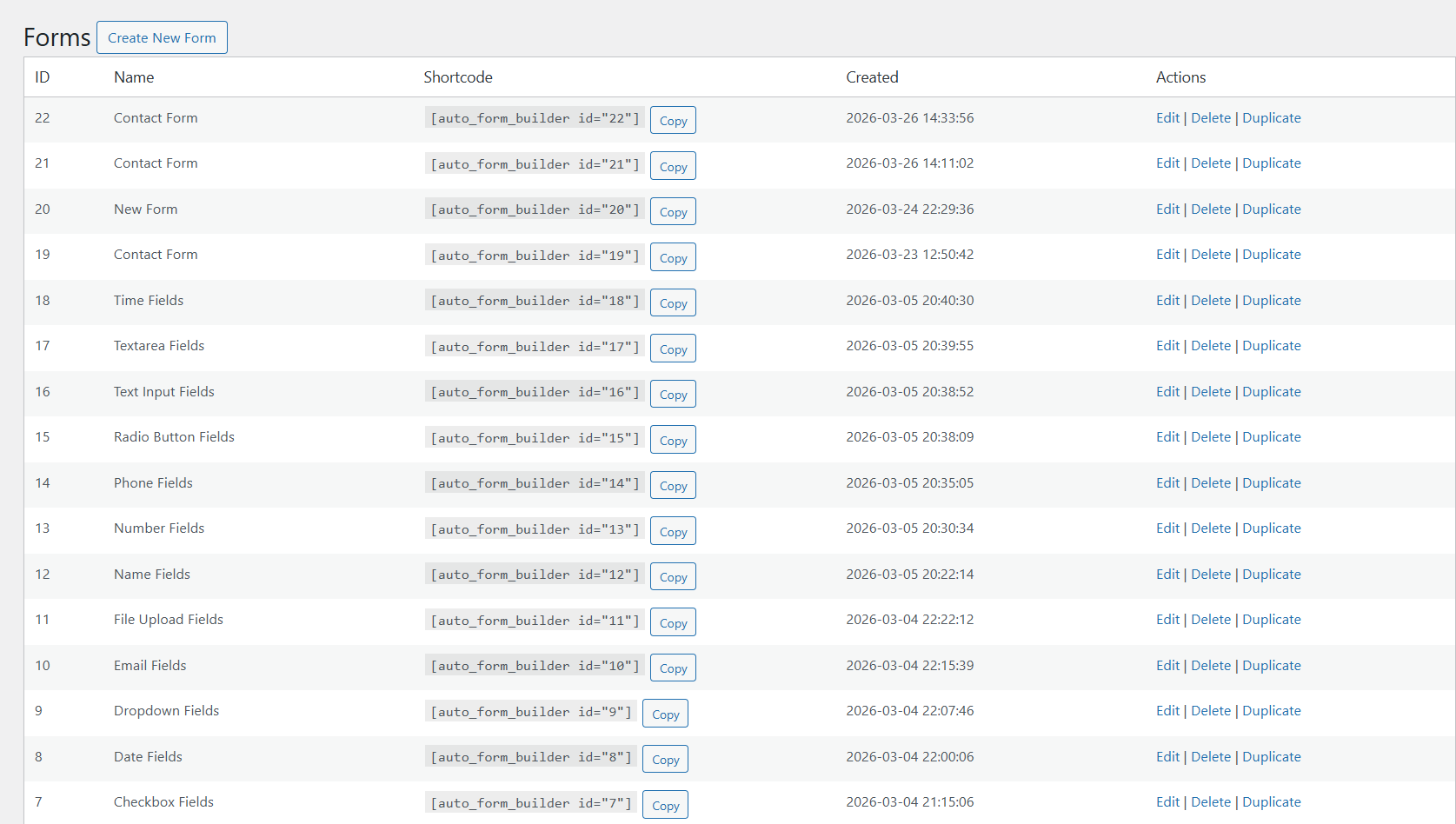
- Click Create New Form to build your first form.
- Copy the shortcode and paste it into any page or post.
FAQ
-
Is this plugin really free?
-
Yes. The drag-and-drop builder and every non-AI feature — multi-step forms, conditional logic, surveys, calculations, the Products field, Stripe payments, Google Sheets, Entry Tags, form analytics, spam protection, popups, user registration, submission management, webhooks, Slack notifications, import/export, and full visual customization — are 100% free. There is no premium version and there are no paid add-ons. The only thing you can pay for is AIDA credits for the optional AI features, and only after the free trial credits are used up.
-
Do I need to know how to code?
-
No. The drag-and-drop builder needs zero coding. Building, styling, and embedding are all handled through the visual interface.
-
What field types are available?
-
Text, Textarea, Email, Phone, Number, Date, Time, Month & Year, Checkbox, Radio, Dropdown, Name, Address, File Upload, Signature, Color Picker, Calculation, Products, an HTML content block, Page Break (multi-step), and four survey fields: Tabular Survey (Likert grid), Star Rating, NPS, and Opinion Scale. See the full field reference.
-
Can I add conditional logic?
-
Yes. Every field supports show/hide logic with AND/OR conditions, and logic can also change your confirmation message, redirect, or which email is sent.
-
Can I create multi-step forms?
-
Yes. Enable multi-step mode and add Page Break fields where each step starts. You get step titles, custom button labels, progress bar styles, and answer-based branching that skips or jumps steps so visitors only see what applies.
-
Can I embed my form on another website?
-
Yes. Every form has a ready-made embed code that works on any site, including non-WordPress platforms and page builders like WP Bakery, Brizy, and Elementor. The embed keeps your design, resizes automatically, and stays isolated from the host theme. You can also share a direct link to the form as its own page.
-
Can I embed the AI chat on another website?
-
Yes. When AI Conversation is on for a form, its settings have an Embed section with the code and a Copy button, and the AI Conversational Forms list has a “Copy embed code” button too. Paste the code into any website, WordPress or not. It works for logged-out and logged-in visitors and uses AIDA credits the same way as on your own pages. On a form with a Products field, the chat hands over to the regular form at the end, with the answers filled in, so the visitor can choose products there.
-
Can I change how the AI chat looks?
-
Yes. Each conversational form has an Appearance tab with a live preview that uses no AI credits. Start from a preset (Light, Dark, Transparent or “Match my form”, which takes your form’s colors and font), then change the colors, font (your theme’s, the system font or a Google font), text size, corners, header, avatar and input. Show the chat in the page or as a floating button in a corner, with an optional teaser message. Administrators can also add custom CSS for one chat.
-
Can I accept payments?
-
Yes, with the free Stripe Payments add-on (off by default; enable it under Forms Add-Ons). Connect your own Stripe account and visitors pay on Stripe Checkout after submitting. The amount can be a fixed price, an amount the visitor enters, a Calculation result, or a Products order. Payment status and refunds are tracked on the Submissions screen, and card details are entered on Stripe’s page, never on your site. The plugin adds no transaction fee or percentage — you pay only Stripe’s standard processing fees.
-
Can I sell products and take payments for free?
-
Yes. The Products field and the Stripe Payments add-on are both free. List what you sell with prices, turn on Stripe Payments, and visitors choose products and quantities, see the total, and pay on Stripe Checkout, with each product on its own line. Prices always come from your form, never from the visitor’s browser. The plugin adds no fee; you pay only Stripe’s standard fees. Prices are one-time; recurring billing is not available yet.
-
Can my form calculate totals or prices?
-
Yes. Add a Calculation field and write a formula that uses other fields, for example a price times a quantity plus a fee. The total updates as the visitor fills in the form and is calculated again on your server when the form is submitted, so visitors cannot change it. A Calculation field can also set the amount of a Stripe payment.
-
Can I send submissions to Google Sheets?
-
Yes, with the free Google Sheets add-on (off by default; enable it under Forms Add-Ons). Connect a Google service account, choose a spreadsheet and worksheet for each form, and map fields to columns. New submissions are added in the background and retried automatically if Google is slow or unavailable.
-
Can I show my form in a popup?
-
Yes, free and built in — no separate popup plugin. Display any form as a modal, slide-in, sticky bar, full-screen, welcome mat, or floating launcher, and control which pages it appears on, how it triggers, how often it shows, and what happens after submit.
-
Can visitors sign my forms with an e-signature?
-
Yes. Add the Signature field and visitors can sign with a mouse, finger, or stylus. The signature is stored securely and shown as an image in the entry details, on WordPress pages and embedded forms.
-
Can users register and log in through my forms?
-
Yes, free and built in. Pick which form creates accounts and map its fields to the account email, username, password, and name. Choose the new role, customize the welcome email, and add an independent login form (with lost password and reset) to any page via the [auto_form_builder_login] shortcode — no default WordPress login screen.
-
Can I protect my forms from spam?
-
Yes. Google reCAPTCHA and Cloudflare Turnstile are both included free — use either or both on any form.
-
Can I manage leads from my forms in a CRM?
-
Yes. Auto Form Builder integrates natively with Auto Form CRM, a premium WordPress CRM with contact management, a deal pipeline, automation, email campaigns, meeting scheduling, and live chat. Capture with Auto Form Builder, then nurture and close in Auto Form CRM. Learn more at autoformcrm.com.
-
Do the AI features cost money?
-
The core builder is free and always will be, with no account required. The optional AI features run on our AIDA service: a free AIDA account comes with free trial credits, and after those are used, continued AI usage needs one-time credit packs bought on autoformcrm.com. So AI is a paid service after the free trial, while everything else stays free. Your credit balance is always visible in the plugin.
-
What data is sent to external services when I use the AI features?
-
Only when you actually use an AI feature, and only the content it needs: the form description or uploaded document when building a form; the submission content when you summarize, reply, or “ask across submissions,” or when the admin assistant answers a question; the messages you type into the admin assistant; and — only if you enable AI Conversation on a public form — the chat messages visitors type. Requests are authenticated with your AIDA token (kept encrypted on your server) and processed by our AI provider, Anthropic. Nothing is sent unless you opt in and use the feature. See “External Services” for full details.
-
Can I use the plugin without the AI features?
-
Yes. Auto Form Builder is fully functional without any AI. The AI modules are switched on by default, but the plugin never contacts AIDA until you connect an AIDA account. If you never connect one, nothing is sent, and you can switch the AI modules off under Forms Add-Ons. Every other feature works the same either way.
-
Can a webhook send my own JSON, for example to the Meta Conversions API?
-
Yes. Edit the webhook under Settings Webhooks, choose “Custom JSON template” and write the JSON, or start from the Meta Conversions API Lead example. Put tags inside quotes, for example “{email}”. Field tags are the same as in emails; system tags include {event_id}, {event_time}, {page_url}, {page_url_clean}, {referrer}, {visitor_ip}, {user_agent}, {form_id}, {form_name} and {submission_id}, and the Ad Tracking add-on adds tags such as {gclid}, {utm_source}, {fbp} and {fbc}. Modifiers run left to right: |trim, |lower and |nospace tidy a value, |e164 writes a phone number with its country code, |sha256 hashes it (it must come last, and an empty value stays empty) and |number sends a number instead of text (only when the tag is the whole value). For example {phone|e164|sha256} or “{event_time|number}”. “Validate & preview” shows the result with sample values before you save. To keep an answer out of every webhook, turn on “Never send to webhooks” in that field’s settings in the form builder.
-
Can I read submissions without opening each one?
-
Yes. On the Submissions screen, click the eye icon on a row, or press Shift+V, to open the entry’s answers in Quick view over the list. Previous and Next (or J and K) move through the list in its order, and opening an unread entry marks it read.
-
How do I count a lead once when I use both a pixel and a webhook?
-
Use the same event ID in both. When the success message shows, the page fires an afb:lead event with the submission’s event ID, and pushes afb_lead to the dataLayer for Google Tag Manager. For the Meta pixel: document.addEventListener( ‘afb:lead’, function ( e ) { fbq( ‘track’, ‘Lead’, {}, { eventID: e.detail.event_id } ); } ). In the webhook template, send “{event_id}”. If the form redirects straight to another page, add the ID to the redirect address, for example https://example.com/thanks?eid={event_id}, and fire the pixel there.
-
Only while the Ad Tracking add-on is switched on, and only when a visitor arrives with an ad click ID (fbclid, gclid, gbraid, wbraid, msclkid) or UTM parameters, the site sets one first-party cookie, afb_attr, for 90 days (you can change this). It holds those values for the first visit, the last visit and the last ad click, with the landing page address (without its query string) and the referring site’s name. It is set by your own site (HttpOnly, SameSite=Lax, and Secure on HTTPS), never sent to other sites, and is used to fill webhook tags and hidden fields such as {gclid} or {fbc}. The add-on reads the Meta _fbp and _fbc cookies but never writes them, and does not touch any other cookie. Suggested privacy policy text is added under Settings Privacy. If your site is behind Cloudflare or a proxy, set “Visitor IP source” under Settings Webhooks, so the add-on’s limit on requests per visitor counts each visitor separately.
-
Where can I get support?
-
Visit autoformbuilder.com/support for documentation and support.
Reviews

Contributors & Developers
“AFB – Auto Form Builder: Drag & Drop Contact Forms, Multi-Step Forms, Conditional Logic & AI” is open source software. The following people have contributed to this plugin.
Contributors
Interested in development?
Browse the code, check out the SVN repository, or subscribe to the development log by RSS.
Changelog
1.6.1
- New: Conversational Forms: an Appearance tab on each form’s Configure screen, with a live preview that uses no AI credits:
- Style: Light, Dark, Transparent or “Match my form” (takes the colors, corner radius and font from the form’s Customize settings), plus your own colors for the window, header, bubbles, accent and border. A warning shows when a text color is too close to its background to read. A transparent chat embedded on another site lets that site’s background show through.
- Text: the system font, your page’s font or one of about 100 Google fonts, and the text size. A Google font loads only on pages that show that chat.
- Shape and size: corner radius, bubble style, shadow, border, height, maximum width, and full height on phones.
- Header: show or hide it, an avatar (dot, initials or a Media Library image), a name and subtitle, and the “Start over” button and progress bar.
- Input and motion: placeholder, label, a text send button, the typing indicator and the fade-in of new messages. Visitors who prefer reduced motion see no animation.
- Layout: show the chat in the page or as a floating button in a bottom corner, with its own color, icon and an optional teaser message. The floating chat starts only when opened. One floating chat shows per page; others, and chats embedded on other sites, show in the page.
- Custom CSS for one chat, limited to that chat. Only users who may post unfiltered HTML (usually administrators) can change it; imports, scripts and other unsafe code are refused.
- Fix: Conversational Forms: the chat no longer picks up common theme styles, such as a theme’s serif font or the hidden “Your message” label showing next to the input.
- New: Webhooks and ad tracking:
- Several webhooks: send each submission to more than one place, for example your CRM and Zapier. Each webhook has its own name, address, on/off switch, signing secret, forms and last delivery result, and can be tested, duplicated or deleted on its own. Your existing webhook becomes the first one and keeps sending exactly the same data.
- Your own JSON: instead of the standard data, a webhook can send JSON you write, for example for the Meta Conversions API (a ready-made example is included). Use tags for the answers (the same ones as in emails) and for the submission: event ID, time, page, referrer, visitor IP and browser, form. Change values with |trim, |lower, |nospace, |e164 (phone number with country code), |sha256 (hashed, as ad platforms require) and |number. “Validate & preview” shows the result with sample values. A template with mistakes cannot be saved, and a visitor’s answer can never break the JSON.
- Background sending: webhooks are sent after the visitor’s page has loaded, so a slow service never delays a submission. A delivery that fails for a temporary reason is retried 5 times over about 8 hours, and the Webhooks screen warns you when deliveries failed. Each request has an X-AFB-Delivery-ID header that stays the same on retries, so the receiving service can skip duplicates. The copy of a submission kept for delivery is removed as soon as the delivery succeeds, fails for good or is cancelled.
- “Never send to webhooks”: a setting on each field in the form builder. That answer, its label and its options are never sent by any webhook. Emails and other integrations are unchanged.
- Ad Tracking add-on (free, off by default): remembers ad click IDs (fbclid, gclid, gbraid, wbraid, msclkid) and UTM parameters of a visitor’s first visit, last visit and last ad click in a cookie set by your own site, and gives webhooks tags such as {gclid}, {utm_source}, {fbp} and {fbc}. Hidden fields set to one of these tags are filled in too, and checked again on your server. The values are never cached by a page cache or CDN, only your own site’s pages can read or change them, and the cookie cannot be read by scripts.
- One lead, counted once: each submission gets an event ID in the browser. When the success message shows, the page fires an afb:lead event and an afb_lead dataLayer push with that ID, once per submission, so a tracking pixel and a webhook report the same lead and ad platforms count it once. For example: document.addEventListener( ‘afb:lead’, function ( e ) { fbq( ‘track’, ‘Lead’, {}, { eventID: e.detail.event_id } ); } ). On forms embedded on other sites, the host page gets the event too. Forms that redirect to another page can pass the ID in the address with the new {event_id} tag.
- Settings Webhooks: “Visitor IP source” for sites behind Cloudflare or a proxy (the default cannot be faked by visitors), and “Default phone country” for numbers typed without a country code.
- New: Submissions: a redesigned entry page and Quick view:
- Answers first: an entry shows its answers as a clean list. Layout fields (page breaks, HTML blocks, headings and similar) are no longer listed, empty answers are hidden behind “Show empty fields”, and the counter reads “N of M answered”.
- Sidebar: on wide screens, the submission details and add-on panels (tags, payment) sit beside the answers. Technical details are closed behind “Show technical details”, and each user’s choice is remembered.
- Header and toolbar: “Entry #N · Form name” with the date, time and source page on one line, and Previous / Next beside it. All entry actions sit in one toolbar of same-size buttons, with More at the end. On phones the buttons show icons only.
- Quick view: the eye icon on each row, or Shift+V on a focused row, opens the entry’s answers in a dialog over the list. Previous / Next (or J / K) follow the list’s order, and “Open full entry” opens the page. Opening an unread entry marks it read and updates the counts, but the entry stays in the Unread view until the page reloads. The full View link now has an “open” icon.
- Entry Tags: tags show as compact chips with “+ Add” in the Tags panel, in place of the “Manage Tags” button. The tag picker opens as a dialog over the page.
- AI Assistant: one “AI” menu with Summarize (quick), Summarize (detailed) and Draft reply…. The summary shows in the sidebar, and Draft reply opens in a dialog.
- Printing: a printed entry shows the heading, date, source, answers and Details, without buttons or navigation. Long entries continue across pages without splitting an answer. With Stripe Payments, a short payment summary is included, without Stripe IDs.
- Keyboard: the entry shortcuts pause while a dialog, picker or menu is open, so Escape closes the dialog instead of leaving the entry. The shortcuts dialog lines up correctly in right-to-left languages.
- Products orders, file attachments, signatures, ratings and matrix answers look the same on the entry page and in Quick view, and products order tables now have proper column alignment and borders.
- Security: Webhook signing secrets are stored encrypted and must be 32 to 256 characters (“Generate” makes one). If a secret can no longer be read, for example after the site’s security keys change, that webhook is held back instead of being sent unsigned, and a notice asks for a new secret.
- Fix: An uploaded file whose original name was not stored showed as “Uploaded file” in emails; it now shows the file’s name.
- Fix: Conversational Forms: the thank-you message after a chat uses the chat’s font and text size.
- Tweak: Conversational Forms: the default chat blue is slightly darker, so white text on it meets WCAG AA contrast.
- Developer: New filters auto_form_builder_merge_tags and auto_form_builder_merge_tag_values add webhook template tags, and auto_form_builder_hidden_field_submit_value lets add-ons resolve a hidden field’s value on the server. The auto_form_builder_webhook_payload filter receives the webhook as a fourth argument.
- Developer: The auto_form_builder_webhook_request_args filter now runs when the webhook is sent (after the page has loaded, or in WP-Cron), not during the submission, and receives the webhook as a third argument.
1.6.0
- New: Products field, free. List the products or services visitors can buy, with a name, price, optional description and image. Show them as checkboxes, a single choice, quantity steppers or cards, and limit how many can be chosen.
- New: Products field: visitors can pick a quantity for each product, within the minimum and maximum you set.
- New: Products field: a live order summary lists each product, its quantity and line total, and the order total as visitors choose. It can cover one field or the whole order.
- New: Products field: with the free Stripe Payments add-on, visitors pay the order total through Stripe Checkout, which shows each product as its own line with its quantity. Prices are always taken from your form, never from the visitor’s browser.
- New: Products field: with URL prefill turned on for the field, a link can preselect products and quantities, for example ?plan=basic:2,banner:1. This only fills in the form; prices are always checked again on your server when it is sent.
- New: Products field: each product can be shown or hidden with conditional logic, and other fields can show or hide depending on what was chosen.
- New: Products field: calculations can use the order total and the quantity of each product.
- New: Products field: orders are shown itemized, with quantities, unit prices, line totals and the total, on the submission page, in the list preview, CSV exports, emails, Slack, Google Sheets, webhooks and saved partial entries. Webhooks also receive the order as structured data. Emails and redirect links can use {field:ID:total} and {field:ID:items}.
- New: Products field: when an order spans several Products fields, the submission page shows the total of the whole order under them.
- New: Submissions: Previous and Next buttons on a submission page open the next entry of the list you came from, with the same tab, filters, search and sort. Without one, they follow All submissions, newest first.
- New: Submissions: “Next unread (3 left)” jumps to the next unread entry in that list. When none are left, “All caught up” links back to the list.
- New: Submissions: a submission page shows where the entry is in its list, for example “12 of 48 in Unread”.
- New: Submissions: after Move to Trash, Mark as spam, Not spam, Restore or Delete permanently on a submission page, the next entry in the list opens (or the previous one at the end). You go back to the list only when it is empty.
- New: Submissions: keyboard shortcuts on a submission page: J next, K previous, U next unread, S star, R read or unread, # move to trash, Esc back to the list. Press ? to see them.
- New: Submissions: on phones, Previous, Next unread and Next stay at the bottom of the screen.
- New: Submissions: “Reply by email” opens your email app with the submitter’s address and the subject “Re: form name”, when the entry has an email answer.
- New: Conversational Forms: embed the chat on any website. Each form’s settings have an Embed section with the code and a Copy button, in the same format as the regular form’s embed code, and a height option (600 px by default). The chat keeps that height and scrolls inside, uses the full width, and is never taller than the screen on phones. While conversational mode is on, the form’s embed shows the chat; add &afb_view=form to the address to embed the regular form instead.
- New: Conversational Forms: the Forms list has a “Copy embed code” button next to each shortcode, like the main All Forms list. It copies the same code as the form’s Embed section, 600 px high.
- New: Conversational Forms: the embedded chat works for logged-out and logged-in visitors, also when the browser blocks cookies in frames from other websites. Rate limits, credits and the Health tab work as on your own pages.
- New: Conversational Forms: in an embed, “Open the regular form” opens it in the same frame with the answers already given filled in. When the form redirects after completion, the whole page goes there; otherwise the completion message shows in the embed.
- Fixed: Stripe Payments: a payment could fail to start, with “The payment could not be started”, when Stripe had already seen an earlier request for the same entry number with different details, for example from a copy of the site connected to the same Stripe account. Each payment attempt now has its own request key, and a retry of the same attempt still can never open a second Checkout page.
- Fixed: when the combined frontend files are not available, forms now also load the Month & Year picker, label and inside-the-field icons, Signature and Calculation files.
- Fixed: popups and other site-wide extras from your site, such as footer notices and scripts added by the theme or other plugins, no longer appear inside an embedded form.
- Fixed: Conversational Forms: a form set to redirect after completion now redirects on your own pages too, exactly like the regular form: straight away for “Redirect”, after the message for “Message then redirect”, with field tags in the address filled in.
- Fixed: Conversational Forms: a form that takes a Stripe payment now sends the visitor to the Stripe payment page when the chat finishes, also when embedded, instead of leaving an unpaid entry behind. Return, cancel and “Resume payment” work as on the regular form, and the cancel notice shows above the chat. When a submission is refused, for example because a payment can’t be made (amount too low, total of 0, Stripe not connected), the chat shows the same message as the regular form and lets the visitor correct their answer, instead of thanking them. A payment form with a Products field hands the visitor to the regular form, with their answers filled in, to choose products and pay.
- Fixed: Conversational Forms: the chat can’t fill in Products fields, so any form with a Products field, not only payment forms, now hands the visitor to the regular form when the chat finishes, with their answers filled in. The form’s settings list its Products fields as chosen in the regular form.
- Fixed: Submissions: on phones, the bottom bar’s labels are no longer cut off. Each button shows its icon above a short label, and the AI Assistant button sits above the bar instead of covering Next.
- Fixed: Products field: order lines read the same everywhere, for example “2 × Basic ($98.00)”, in emails, Slack, Google Sheets and CSV exports.
- Fixed: Products field: a Products field left empty is shown like any other empty field on the submission page and in emails, instead of “No products selected”, and no longer counts as answered.
- Fixed: emails list the submitted fields in the form’s order, in the default admin and confirmation emails and in {submission_data}. A Products field could appear after fields that come later in the form.
- Fixed: CSV export: column headers use the field labels exactly as written in the form, for example “Add-ons” instead of “Add Ons”.
- Tweak: Stripe Payments: if Stripe ever returns a Checkout page for a different amount than the entry owes, that page is closed at once so it cannot be paid.
- Tweak: Submissions: the next entry is loaded ahead of time so Next opens faster. Loading it ahead never marks it read.
- Tweak: Conversational Forms: the License section is gone from the settings. The add-on is free and never asks for or checks a license; a key saved earlier is deleted on update, and everything else keeps working.
- Tweak: Google Sheets: messages with numbers or names in them now explain each placeholder to translators, and messages with two of them number each one so translations can change the order.
1.5.3
- Fixed: Conversational Forms: the chat no longer stops with “The AI response could not be parsed”. A reply the chat cannot read is retried once; if that also fails, the visitor is asked the current question again in the form’s own wording. Visitors never see technical text.
- Fixed: Conversational Forms: when a visitor answers with something that is not a value, such as “skip this”, “I’d rather not” or “call me instead”, a required question is asked again politely with the reason it is needed, an optional question is skipped, and a question from the visitor is answered before the chat carries on.
- New: Conversational Forms: after three replies in a row without an answer to a required question, the visitor is offered the regular form. When they open it from the chat, every answer they already gave is filled in, so nothing has to be typed twice. The answers are kept on the server for 5 minutes and never put in the link.
- Changed: Conversational Forms: the instructions sent to the AI on each turn are shorter, so a typical conversation costs about 20% less on every tier, with the same behaviour.
- Changed: Conversational Forms: a reply that AIDA judges unusable is no longer charged, and a retried reply shares one charge with the reply it replaces.
- New: Conversational Forms: the persona, AI instructions, intro and completion messages and the scoring guide have a character limit, with a live counter under each box: 200, 4,000, 400, 400 and 1,000 characters. A save with a longer text is refused with a message that names the text and its length. Texts saved before this update are never shortened for you: a warning on the form’s settings and on the Health tab lists each one until it fits.
- Fixed: Conversational Forms: when the AI instructions make the conversation too long for AIDA, the chat no longer fails. Visitors read “This chat isn’t available right now.” with a link to the regular form, which keeps any answers already given. Administrators and the live preview are told how long the instructions are and what the limit is. The case is listed on the Health tab, AIDA is not called again, and no credits are charged.
- New: Conversational Forms: a Health tab lists replies the chat could not use, with the time, form, tier and error, and AIDA’s reason and 0 credits when AIDA judged a reply unusable. The raw reply is shown with the visitor’s words, the answers collected so far, and any email address, phone number or date removed. Entries are kept for up to 7 days, and this works with conversation logging turned off.
- Fixed: Conversational Forms: the answer box matches the question being asked, with the right keyboard on phones for email, phone, number, date and time. A “Type a message instead” link is always available, and the small scroll arrows on the empty answer box are gone.
- Fixed: Conversational Forms: an answer given while correcting an earlier one is no longer lost, the lead analysis email includes the visitor’s name and email, and stored transcripts keep each answer under its own field. Answers were never saved under the wrong field.
- Fixed: Conversational Forms: the button under the answer summary reads “Confirm & submit” again, without HTML code in its label.
- Fixed: When the same form appears more than once on a page (shortcode, block, popup or embed), the success message, the error box and the refilled answers show only in the copy that was sent. A popup only counts a conversion when its own copy is sent.
- Fixed: The Maximum File Size of a File field accepts decimals such as 0.3 MB in the builder, the browser and the server, and size messages read “0.3 MB” instead of “0 MB”. A size of 0 or below is refused in the builder with a clear message and is not saved. The message for a file of the wrong type lists the types the field really allows, for example “PDF, DOC, DOCX”.
- Fixed: The Address field no longer shows two asterisks on Address Line 1 and City, and their “required” errors use the plugin’s own message instead of the browser’s tooltip.
- Changed: Fields without a label use one name everywhere: the builder, the submission page, the list preview, emails, CSV exports, Google Sheets and webhooks. Webhook payloads also include a “field_labels” list.
- New: Entry exports have a “Choice answers” option: Labels (default) or Values.
- Fixed: Answers to fields inside a Row’s columns, and to an Address field with a custom name, are filled back in when the server rejects a submission and when a visitor moves from the chat to the regular form.
- Fixed: The “N fields submitted” count on a submission page only counts answered fields, and an empty File field is no longer listed as “(file missing)”.
- Fixed: A download link to a file that was deleted says “This file no longer exists.” The security check on downloads is unchanged.
- Changed: Entries of a deleted form are named “Deleted form #34” everywhere, including the Dashboard.
- Changed: Bulk actions no longer offer “Mark as Unread” on the Unread tab or “Add to Starred” on the Starred tab.
- Fixed: On phones, the Submissions tabs show their names without overlapping, the filter dropdowns are no longer cut off, and the bottom bulk actions and paging bar sit below the list.
- Fixed: Field tiles in the builder show their full name, such as “Month & Year”, in every language.
- Fixed: The scripts and styles of the built-in add-ons now follow the plugin version, so browsers load the new files after an update instead of a cached copy.
- Fixed: A form with an NPS or Opinion Scale field that has no field name can be sent again when that question is left unanswered, instead of failing with “Please select a valid rating”. Fields without a name no longer pick up another field’s answer during validation.
- Changed: The documentation links on the Help & Support page open the online documentation at autoformbuilder.com in a new tab.
- Removed: The “Plugin .htaccess” line on the System Status page. It reported a file the plugin never creates; the protection of the uploads folder is unchanged.
- Changed: The plugin now ships the source code and build files needed to rebuild its compiled scripts (src/, scripts/, vite.config.js, package.json and package-lock.json), and SOURCE-CODE.txt describes them accurately.
Older versions: see changelog.txt in the plugin folder.