

Description
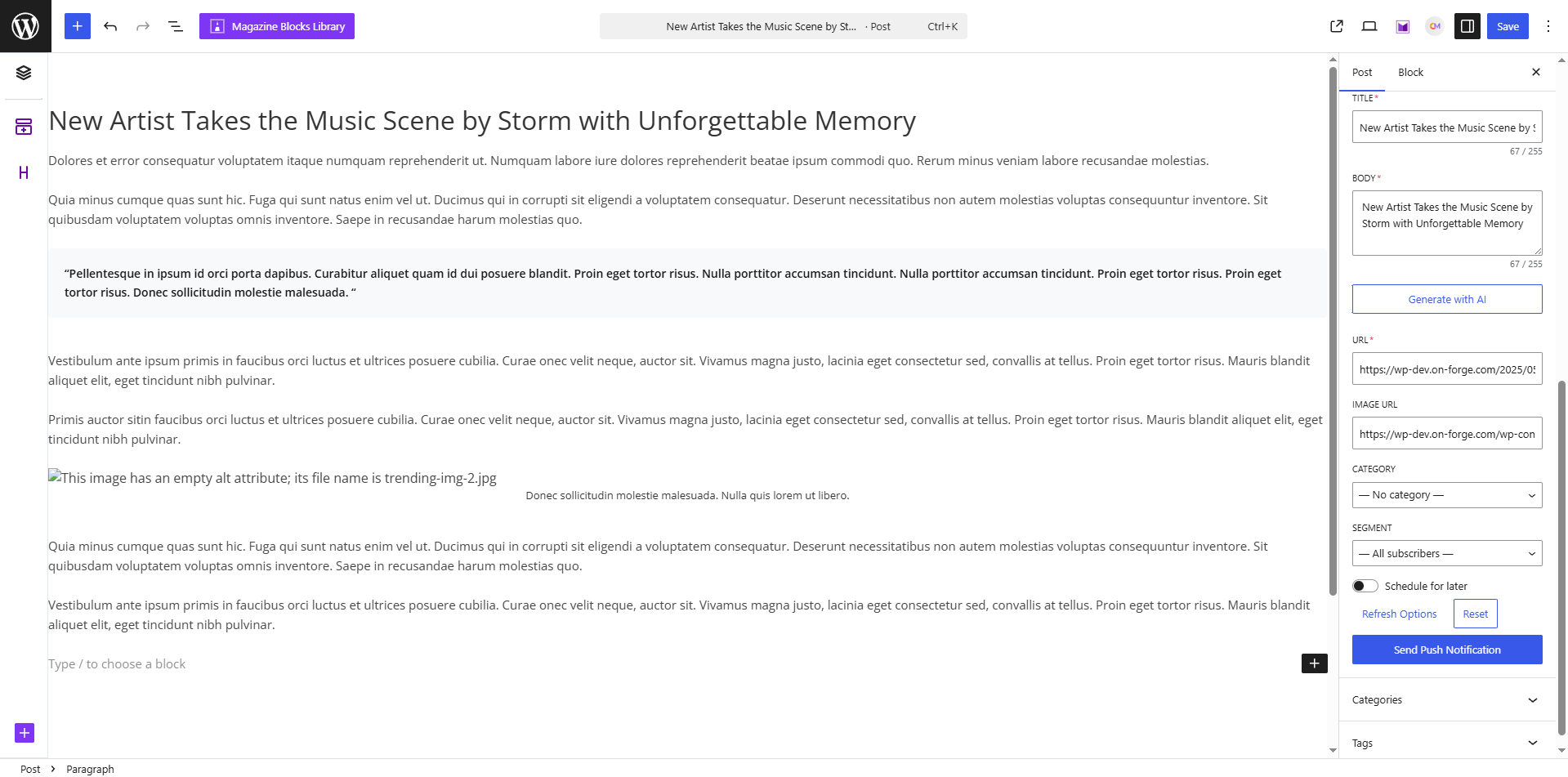
OCM Pulse lets editorial teams send web push notifications directly from the WordPress post editor, without leaving the dashboard or opening the OCM Pulse interface.
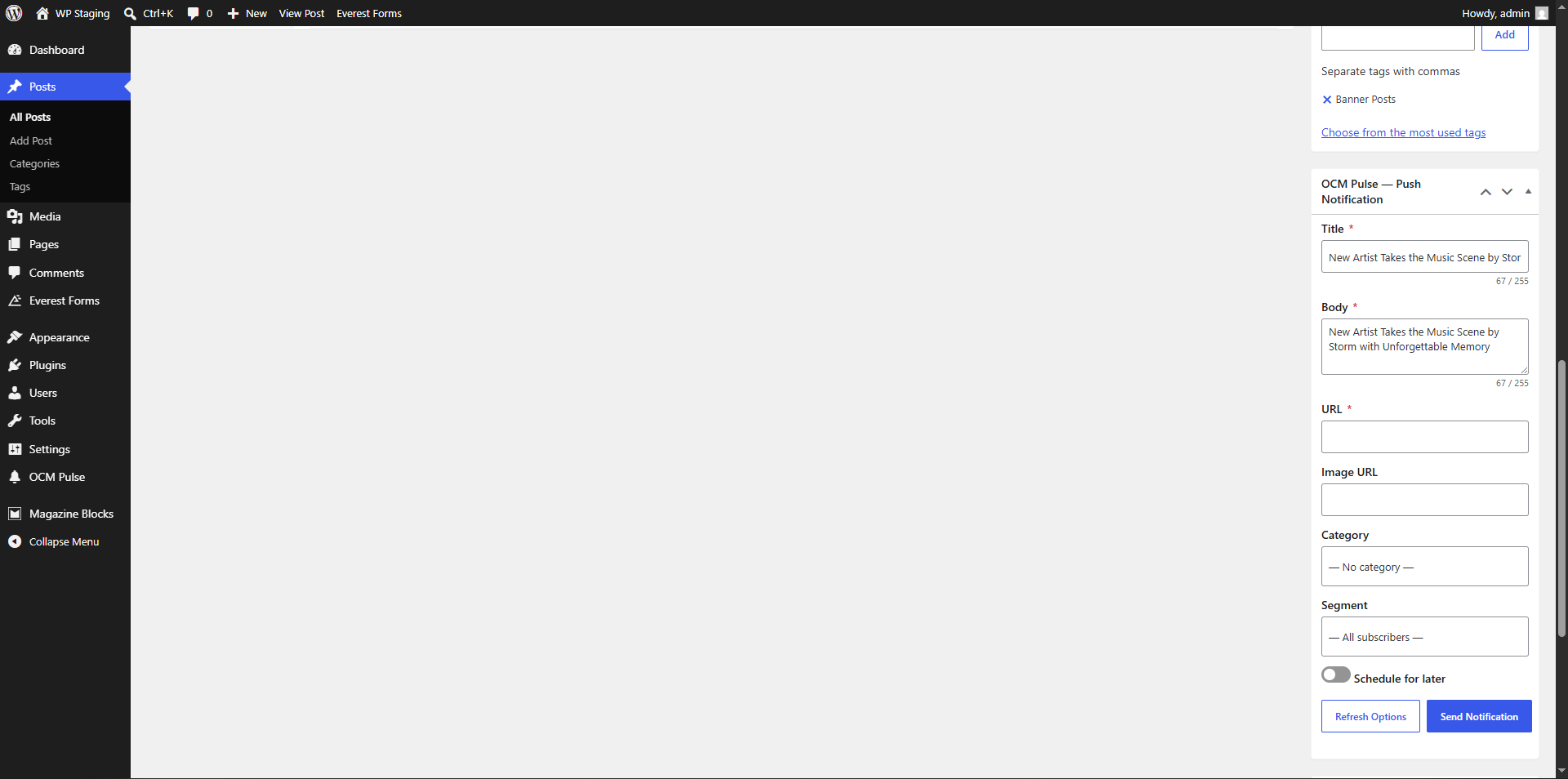
Works with both the Gutenberg block editor (sidebar panel) and the Classic Editor (metabox). The Send button is fully decoupled from post save — publish when you’re ready, notify when you choose.
Features
- Send push notifications from the post editor with one click
- Gutenberg sidebar panel and Classic Editor metabox
- Pre-fills notification title, body, and URL from the current post
- Auto-populates the featured image as the notification image
- Category and segment targeting
- Schedule notifications for a future date and time
- AI-powered copy generation (requires OCM Pulse AI feature on your server)
- RSS feed trigger warning — alerts you when sending might cause duplicate notifications
- API token stored server-side and never exposed to the browser
Requirements
- An active OCM Pulse account
- WordPress 6.7 or later, PHP 7.4 or later
External services
This plugin connects to the OCM Pulse push notification service. An active OCM Pulse account and a connected app are required for the plugin to function.
Terms of Use: https://pulse.orangeclickmedia.com/terms-and-conditions
Privacy Policy: https://pulse.orangeclickmedia.com/privacy-policy
OCM Pulse API
This is used to send and schedule push notifications, and to populate the editor UI.
- What is sent, and when:
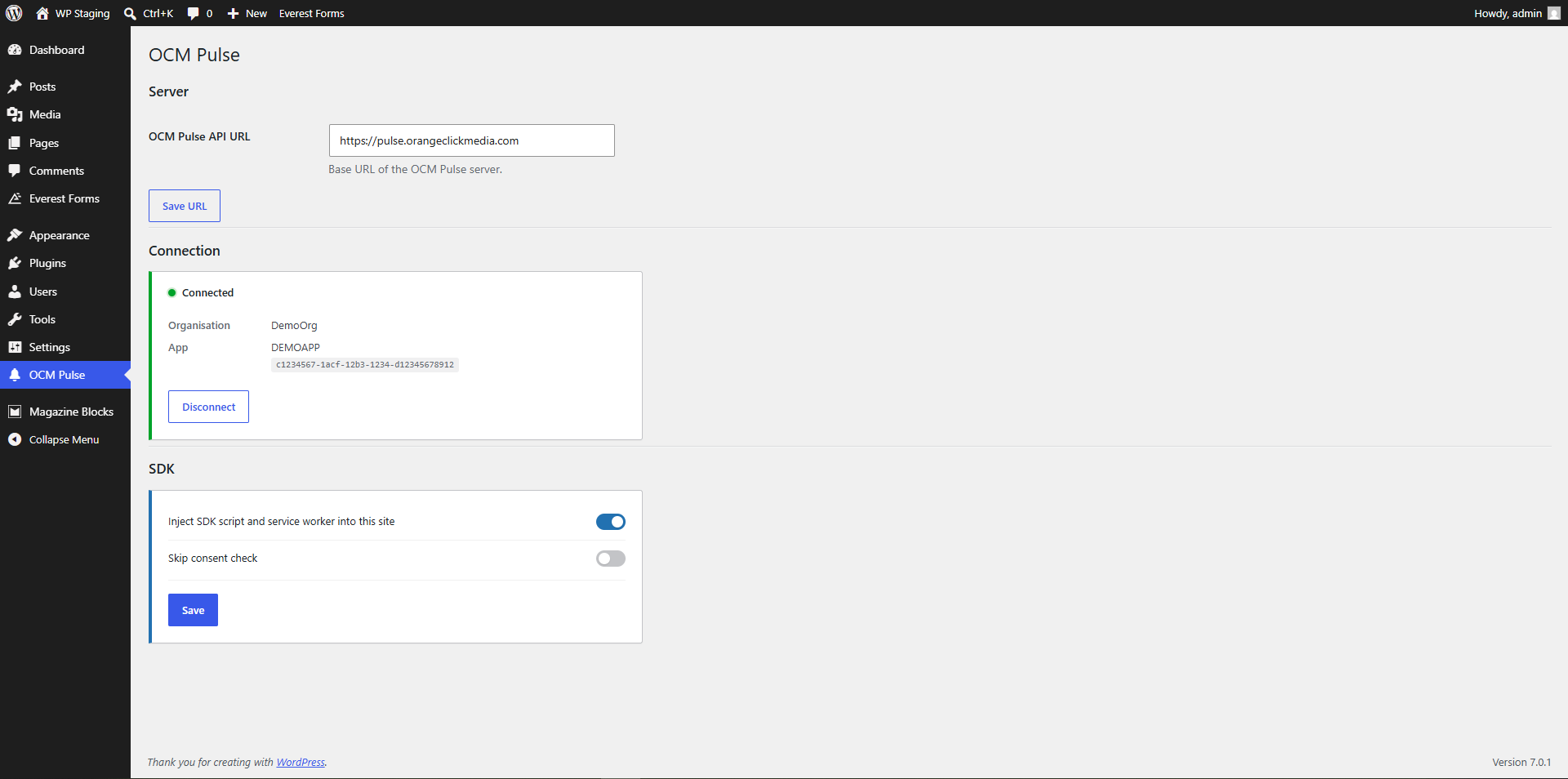
- Connecting: when you click “Connect to OCM Pulse” in Settings OCM Pulse, your browser is redirected to your configured OCM Pulse server to authorise the connection (OAuth 2.0). No post content is sent at this step.
- Sending: when you click “Send Push Notification” or “Schedule” in the post editor, the notification’s title, body, URL, optional image URL, category, segment, and schedule time are sent to your OCM Pulse server to create the delivery.
- AI copy generation: when you click “Generate with AI”, the post’s title and content (HTML stripped) are sent to your OCM Pulse server to generate suggested notification copy. This only happens when you explicitly click the button.
- Editor setup: the plugin fetches your app’s categories, segments, and RSS-trigger status from your OCM Pulse server each time the editor loads, to populate dropdowns and warnings.
- Service URL: the server address you enter under Settings OCM Pulse (“OCM Pulse API URL”). This is configured per installation, not a fixed OCM Pulse endpoint.
OCM Pulse SDK (enabled once you connect an app)
This is a client-side script, served from your configured OCM Pulse server, that registers a browser service worker and prompts site visitors to subscribe to push notifications.
- It is controlled by “Inject SDK script and service worker into this site” under Settings OCM Pulse, which is on by default. Nothing is loaded until you connect the plugin to an OCM Pulse app; from then on it loads on every frontend page, for every visitor, until you turn the option off.
- Enabling it also writes an
ocm-push-worker.jsfile to your site root — a one-line stub that loads the service worker from your OCM Pulse server. It is removed again when you turn the option off, disconnect, or deactivate the plugin. - The SDK performs its own visitor consent check before prompting for a subscription, unless you separately enable “Skip consent check” (also disabled by default). Enabling that option is your decision as the site operator, and you are responsible for complying with applicable privacy laws (e.g. GDPR/ePrivacy) if you do.
Screenshots
Installation
- Upload the
ocm-pulsedirectory to/wp-content/plugins/, or install via Plugins Add New. - Activate the plugin through the Plugins screen.
- Open OCM Pulse in the admin menu, enter your OCM Pulse API URL (e.g.
https://pulse.orangeclickmedia.com), and click Save URL. - Click Connect to OCM Pulse and complete the OAuth flow. Your credentials are stored automatically — no copy-pasting of tokens required.
- Open any post or page in the editor. The OCM Pulse panel appears in the Document tab (Gutenberg) or in the side panel (Classic Editor).
FAQ
-
How do I connect the plugin to OCM Pulse?
-
Open OCM Pulse in the admin menu, enter your OCM Pulse server URL, and click Save URL. Then click Connect to OCM Pulse — you will be redirected to the OCM Pulse server to authorise the connection. Before connecting, make sure an OCM Pulse app exists whose site domain matches this site’s host exactly (the Connect screen shows the required host).
-
Does sending a notification publish or save the post?
-
No. The Send button is completely independent of post saving or publishing. You can send a notification at any time, regardless of the post status.
-
What happens if I leave the schedule field empty?
-
The notification is sent immediately.
-
Why are the Category and Segment dropdowns not showing?
-
These dropdowns populate from the OCM Pulse server. If your server version does not yet expose the category and segment endpoints, the dropdowns are hidden and the notification is sent to all subscribers without a category filter.
-
Is my API token secure?
-
Yes. The API token is stored in the WordPress database and never output to the browser. All OCM Pulse API calls are made server-side via the WordPress REST API.
-
Why does /ocm-push-worker.js return 404?
-
Push notifications need a service worker served from the site root, so while SDK injection is on the plugin keeps an
ocm-push-worker.jsfile there. The SDK card in Settings OCM Pulse checks that URL and reports whether it is actually being served.If it 404s:
- The file is not on disk. Re-save the SDK settings. If the notice says the site root is not writable, create
ocm-push-worker.jsin the site root manually with this single line, replacing the URL with your OCM Pulse server:importScripts("https://pulse.orangeclickmedia.com/sdk/ocm-push-worker.js"); - The file is on disk but the URL still 404s. A CDN or page cache is serving a stale 404 — purge both. Some hosts also rewrite or block requests for
.jsfiles that they cannot find on disk; ask the host to stop intercepting this path.
- The file is not on disk. Re-save the SDK settings. If the notice says the site root is not writable, create
-
Does this plugin work with custom post types?
-
The Classic Editor metabox is registered for
postandpagepost types. The Gutenberg sidebar appears on all post types that support the block editor.
Reviews
There are no reviews for this plugin.
Contributors & Developers
“OCM Pulse” is open source software. The following people have contributed to this plugin.
Contributors
Translate “OCM Pulse” into your language.
Interested in development?
Browse the code, check out the SVN repository, or subscribe to the development log by RSS.
Changelog
1.1.0
- Fixed
/ocm-push-worker.jsreturning 404 on some hosts, which stopped push notifications from working entirely. The service worker was served through WordPress, but many hosts answer requests for.jsfiles from the web server and never hand them to PHP. It is now installed as a real file at your site root, so the web server serves it directly. - Settings OCM Pulse now checks the service worker URL over HTTP and reports whether it is genuinely being served, naming the cause when it is not — a missing file, a site root WordPress cannot write to, or a cache or host rule intercepting the path.
- “Inject SDK script and service worker into this site” is now on by default for sites connected to an OCM Pulse app. If you previously switched it off, that choice is kept.
- The worker file now looks after itself: written after you connect, restored if it is deleted, updated if you change the server URL, and removed when you turn injection off, disconnect, or deactivate the plugin.
- Fixed an empty-server-URL check that could never trigger, which would have loaded the SDK from a relative URL.
1.0.2
- WordPress 7.1 compatibility.
- Notification images are now resolved on the server at send time from the featured image, instead of a URL captured in the browser. This removes a race where a notification could go out with a stale image, or none at all, while an upload was still finishing.
- The Image URL field now explains that it previews what the server will resolve, and can still be overridden by typing your own URL.
- Opted the editor panel’s controls into WordPress 7.1’s 40px control size, so the panel renders consistently from WordPress 6.7 through 7.1.
- Minimum supported WordPress raised from 6.6 to 6.7.
1.0.1
- OCM Pulse API URL field now defaults to
https://pulse.orangeclickmedia.com/on first setup, saving a manual step for new installs. - Added Terms of Use and Privacy Policy links to the External Services documentation.
- Updated plugin directory icon, banner, and screenshots.
1.0.0
- Initial release.